
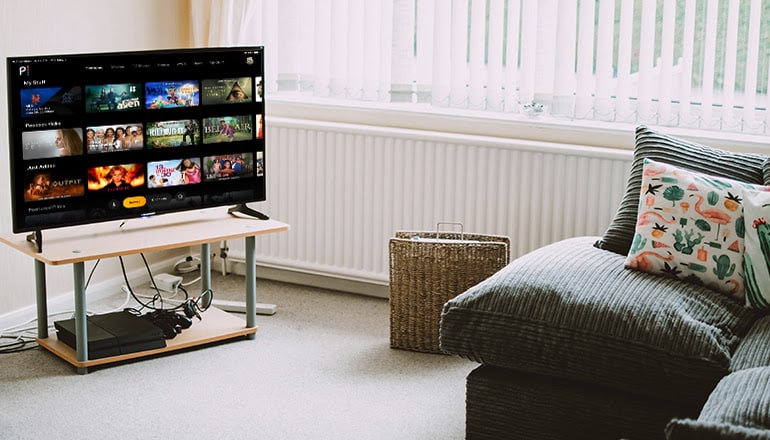
In today’s era of streaming dominance, NBCUniversal’s Peacock has carved out a significant niche with its blend of current NBC hits, classic series, blockbuster films, and exclusive Originals. For owners of Samsung and LG Smart TVs—two of the most popular brands globally—accessing this content is a straightforward process, but it can vary slightly between the different operating systems. This detailed, 1500-word guide will walk you through every step for both platforms, covering prerequisites, troubleshooting, and optimization tips to ensure a seamless installation and viewing experience.
Understanding the Smart TV Landscape: Tizen vs. webOS
Before you begin, it’s helpful to know the underlying software:
- Samsung TVs (2017 and newer models) run on Tizen OS. Its app store is called the Samsung Smart Hub.
- LG TVs (2016 and newer models) run on webOS. Its app portal is called the LG Content Store.
Peacock is widely available on both platforms, but very old models may not be supported. The core steps are similar: navigate to the app store, search, download, and launch. However, the interface and button names differ.
You May Also Like- Peacock : Start Streaming Today with This Simple Login Guide Visit : Peacocktv.com/tv
Part 1: Installing Peacock on Samsung Smart TVs (Tizen OS)
Pre-Installation Checklist:
- Stable Internet Connection: Ensure your TV is connected to your home Wi-Fi or a wired Ethernet network. A weak signal can cause download failures or poor playback.
- Samsung Account: You need a free Samsung account. You may have created one during the initial TV setup. If not, the process will prompt you to create or sign in to one.
- Peacock Subscription Plan: Decide on your plan. Peacock offers a free, ad-supported tier with limited content, and premium ad-supported and ad-free paid tiers. Having your account details ready (email and password) saves time.
Step-by-Step Installation:
- Power On and Navigate to the Smart Hub:
- Turn on your Samsung TV and grab the remote.
- Press the “Home” or “Smart Hub” button (usually depicted as a house icon). This will launch the main dashboard overlay.
- Access the Apps Section:
- Using the directional pad on your remote, navigate to the “Apps” icon. It’s typically located at the bottom of the screen or along a sidebar. Select it and press “Enter.”
- Search for the Peacock App:
- Inside the Apps section, you will see featured and recommended apps. Navigate to the “Search” function (usually a magnifying glass icon in the top-left or top-right corner).
- Select the search bar and use the on-screen keyboard to type “Peacock.” As you type, suggestions will appear.
- Select and Download the App:
- From the search results, click on the official Peacock app icon. This will open the app’s detail page.
- Click the “Install” button. The download will begin. A progress bar will be displayed, and the button will change to “Open” once complete.
- Launch and Sign In to Peacock:
- After installation, select “Open,” or you can always find the app in your “My Apps” section of the Smart Hub.
- Upon first launch, the app will display an activation code on your TV screen (e.g., a 6-character alphanumeric code).
- On a separate device (your computer, smartphone, or tablet), visit Peacocktv.
- Sign in to your Peacock account (or create one if you haven’t).
- When prompted, enter the exact activation code shown on your TV screen.
- Click “Continue” or “Activate.” Your TV screen should refresh automatically within 30 seconds, logging you into your account and presenting the main Peacock interface.
- Troubleshooting for Samsung TVs:
- App Not Found in Store: Ensure your TV’s firmware is updated. Go to Settings > Support > Software Update > Update Now. Older models (pre-2017) may not be supported.
- Installation Stuck/Failed: Check your internet connection. Try closing the Smart Hub (press and hold the Back/Return button to exit completely) and reopening it. You can also try restarting your TV.
- Activation Code Not Working: Codes are time-sensitive. Ensure you enter it quickly. If it fails, close the app, reopen it to get a new code, and try again.
- App Crashing or Buffering: Clear the app’s cache. Go to Settings > Support > Device Care > Manage Storage. Select Peacock and choose “View Details.” Then select “Delete Temporary Files.” If problems persist, uninstall and reinstall the app.
You May Also Like- Peacock : Start Streaming Today with This Simple Login Guide Visit : Peacocktv.com/tv
Part 2: Installing Peacock on LG Smart TVs (webOS)
Pre-Installation Checklist:
- Stable Internet Connection: Same as above—crucial for a smooth process.
- LG Account: An LG account is required to download apps. It’s typically created during TV setup.
- Peacock Subscription Plan: Have your plan selected and account credentials ready.
Step-by-Step Installation:
- Power On and Access the Home Dashboard:
- Turn on your LG TV.
- Press the “Home” button on your Magic Remote (the button with a house icon). This brings up the launcher bar at the bottom of the screen.
- Open the LG Content Store:
- Navigate along the launcher bar to the icon labeled “LG Content Store.” It often has a shopping bag icon. Click to enter.
- Search for the Peacock App:
- Inside the Content Store, use the remote to navigate to the “Search” option (a magnifying glass in the top-right).
- Select the search field and type “Peacock.” Use the pointer function of the Magic Remote for easier text entry.
- Select and Install the App:
- From the results, choose the official Peacock app.
- On the app’s page, click the “Install” button. The download will commence, and the button will change to “Open” upon completion.
- Launch and Sign In to Peacock:
- Click “Open” or find the Peacock app on your main Home Dashboard (you can pin it for easy access).
- The first launch will display an on-screen activation code.
- On a separate device, go to Peacock tv web, log in, and input the code from your TV.
- Confirm the activation. Your LG TV app will update and log you in automatically.
- Troubleshooting for LG TVs:
- Can’t Find Peacock App: Check webOS version compatibility. Peacock requires webOS 3.0 or later. Update your TV by going to Settings > All Settings > General > Software Update > Check for Updates.
- Installation Errors: Ensure your LG account is properly logged in (Settings > General > System > Additional Settings > LG Services Sign-In). Restart the TV by unplugging it for 60 seconds.
- Poor Performance or Playback Issues: Update the app itself from the LG Content Store (go to “My Apps” and check for updates). Reduce network congestion by disconnecting other devices. For buffering, try lowering the streaming quality within the Peacock app settings on your TV.
Part 3: Universal Best Practices and Advanced Tips
- Optimizing Your Viewing Experience:
- Internet Speed: For HD streaming, a minimum of 5 Mbps is recommended. For 4K UHD content, aim for 25 Mbps or higher.
- Wired Connection: If possible, use an Ethernet cable to connect your TV directly to your router. This provides a more stable and faster connection than Wi-Fi.
- Picture Settings: Both Samsung and LG offer dedicated picture modes for streaming. Explore settings like “Film Maker Mode” or “Expert (Dark Room)” for more accurate colors and motion.
- Managing the App:
- Creating User Profiles: Inside the Peacock app, you can create up to six profiles for personalized recommendations and watchlists.
- Parental Controls: Set a PIN within the Peacock account settings online to restrict mature content.
- Updates: Regularly check your TV’s app store for Peacock updates. Developers release updates to fix bugs and add new features.
- Alternative Installation Methods:
- Screen Mirroring/Casting: If you encounter a rare compatibility issue, you can cast the Peacock app from your smartphone or tablet to your TV using built-in protocols like AirPlay 2 (for iOS on compatible Samsung/LG TVs) or Miracast/Smart View.
- Streaming Devices: As a last resort for very old TVs, consider an external streaming device like a Roku, Amazon Fire Stick, or Apple TV, all of which robustly support Peacock.
You May Also Like- Peacock : Start Streaming Today with This Simple Login Guide Visit : Peacocktv.com/tv
Conclusion
Installing the Peacock app on your Samsung or LG Smart TV is a designed-to-be-simple process that unlocks a vast library of entertainment. The key differences lie in navigating each brand’s unique interface: Samsung’s Smart Hub on Tizen OS and LG’s Content Store on webOS. By ensuring your TV is updated, your internet is robust, and following the precise activation steps, you’ll be streaming The Office, Premier League matches, or a new Peacock Original in just a few minutes. Should you hit a snag, systematic troubleshooting—focusing on connectivity, software updates, and app reinstalls—will almost always resolve the issue. Now, with the app installed and optimized, all that’s left is to sit back, relax, and enjoy the show.
