
Improving checkout speed and accuracy is one of the most effective ways to increase conversions in any WooCommerce store. One of the biggest friction points in online shopping is manual address entry, which often leads to errors, failed deliveries, and abandoned carts. This is where Google Address Autocomplete becomes a game changer.
In this guide, we will explain how to add Google Address Autocomplete in WooCommerce checkout, why it matters for your store, and how you can implement it using a reliable plugin solution.
Why Address Autocomplete Matters in WooCommerce Checkout
The checkout page is the most sensitive stage of the customer journey. Even small friction can result in lost sales. Manually typing addresses is one of the most common causes of friction.
When customers enter their address manually, several issues can occur:
- Typing errors in street names or postal codes
- Missing apartment or unit details
- Incorrect formatting based on country standards
- Slower checkout experience on mobile devices
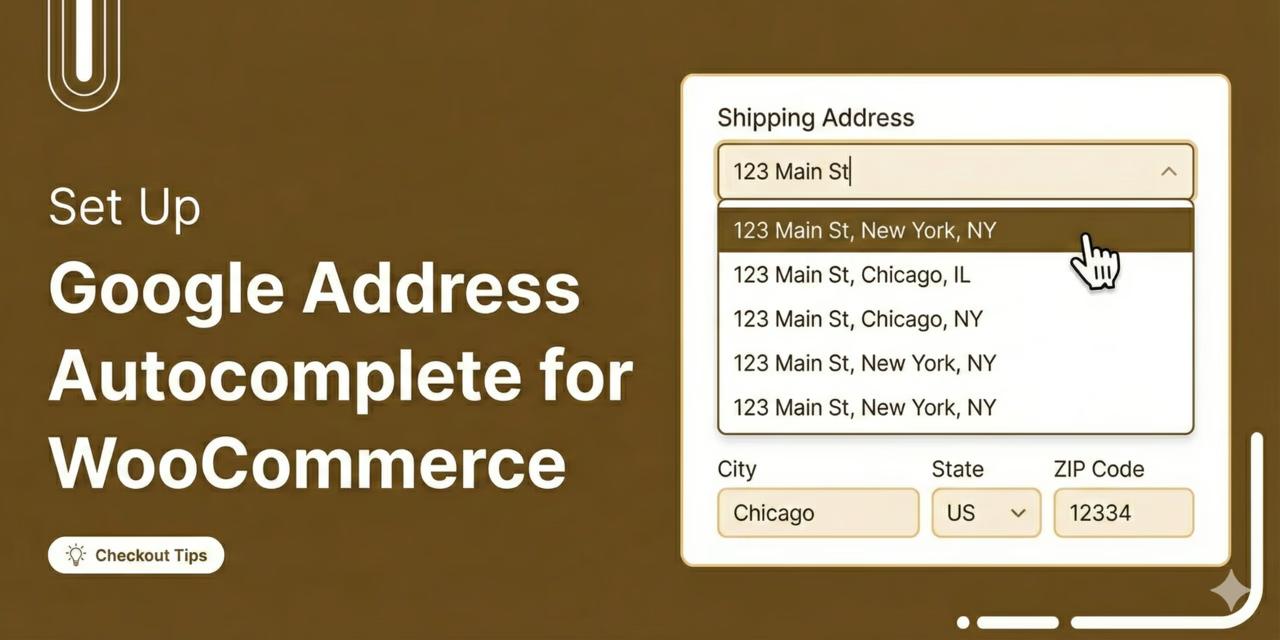
By using woocommerce address autocomplete, you allow customers to select their address from Google’s suggestions as they type. This reduces friction and ensures accurate delivery information is captured the first time.
For stores with high mobile traffic or international customers, this feature is especially valuable. It removes unnecessary effort and improves overall user experience.
What is Google Address Autocomplete in WooCommerce?
Google Address Autocomplete is a feature powered by the Google Places API. As customers begin typing their address during checkout, the system predicts and suggests complete addresses in real time.
When integrated with WooCommerce, this functionality enhances the checkout fields by:
- Automatically suggesting full addresses
- Reducing manual typing
- Improving delivery accuracy
- Speeding up checkout completion
This is commonly referred to as address autocomplete woocommerce functionality and is widely used by high-converting ecommerce stores.
Instead of relying on customers to type full addresses, the system helps them complete forms faster with validated Google location data.
Benefits of Google Address Autocomplete for WooCommerce Stores
Before jumping into implementation, it is important to understand the business value.
1. Faster Checkout Experience
Customers can complete checkout significantly faster since most of the address is auto-filled.
2. Reduced Cart Abandonment
A complicated checkout process is one of the top reasons for cart abandonment. Simplifying address entry directly improves conversion rates.
3. Higher Delivery Accuracy
Incorrect addresses lead to failed deliveries and additional shipping costs. Autocomplete reduces these errors.
4. Better Mobile Experience
Typing long addresses on mobile is frustrating. Autocomplete simplifies the process with a few taps.
5. Improved Customer Satisfaction
A smooth checkout experience increases trust and encourages repeat purchases.
How to Add Google Address Autocomplete in WooCommerce Checkout
The easiest and most reliable way to implement this feature is by using a dedicated plugin. This avoids complex API setup and ensures compatibility with WooCommerce checkout fields.
Step 1: Install a Compatible Plugin
To enable google address autocomplete for woocommerce, you can use a purpose-built extension that integrates directly with WooCommerce checkout fields.
This plugin integrates Google Places API into your checkout fields and enables real-time address suggestions.
Step 2: Configure Google API Key
After installation, you will need to set up your Google API key. This key allows your store to access Google’s Places service.
Basic setup steps include:
- Creating a project in Google Cloud Console
- Enabling Places API and Maps JavaScript API
- Generating an API key
- Adding the key into plugin settings
This step is essential for enabling autocomplete functionality.
Step 3: Enable Autocomplete on Checkout Fields
Once configured, you can enable autocomplete on billing and shipping fields.
Most plugins allow you to:
- Enable or disable autocomplete per field
- Choose which checkout fields use suggestions
- Control address formatting behavior
This ensures flexibility depending on your store’s requirements.
Step 4: Test the Checkout Experience
Before going live, test your checkout process thoroughly:
- Enter partial addresses to check suggestions
- Verify accuracy across different countries
- Test on both desktop and mobile devices
- Ensure no conflicts with theme or other plugins
A properly configured system should show fast and accurate address predictions.
Best Practices for Using WooCommerce Address Autocomplete
To get the most out of woocommerce address autocomplete, consider the following best practices:
Optimize for Mobile Users
Most ecommerce traffic comes from mobile devices. Ensure the autocomplete dropdown is responsive and easy to use on smaller screens.
Keep Checkout Fields Clean
Avoid unnecessary fields that slow down the checkout process. Autocomplete works best when the form is simple.
Test International Addresses
If you sell globally, test addresses from different regions to ensure formatting consistency.
Monitor Conversion Improvements
Track checkout completion rates before and after implementation to measure performance impact.
Common Mistakes to Avoid
While setting up address autocomplete is straightforward, some common mistakes can reduce effectiveness:
- Not restricting API usage properly, leading to unexpected costs
- Using multiple address validation plugins simultaneously
- Failing to test on mobile devices
- Not configuring field mapping correctly
Avoiding these issues ensures a smooth and reliable checkout experience.
Advanced Customization Options
For store owners who want more control, advanced configurations may include:
- Restricting autocomplete to specific countries
- Customizing address formats per region
- Integrating with shipping rate calculators
- Adjusting field priority in checkout layout
The flexibility of modern plugins allows full control over how address data is captured and displayed.
For technical setup details and advanced configuration options, you can refer to the official setup documentation.
Conclusion
Adding Google Address Autocomplete to your WooCommerce store is one of the simplest yet most impactful improvements you can make to your checkout experience. It reduces friction, improves accuracy, and helps customers complete purchases faster.
By implementing google address autocomplete for woocommerce, you enhance both usability and conversion performance without changing your core store design.
Whether you run a small shop or a large ecommerce store, this feature helps streamline checkout and create a more professional buying experience.
