
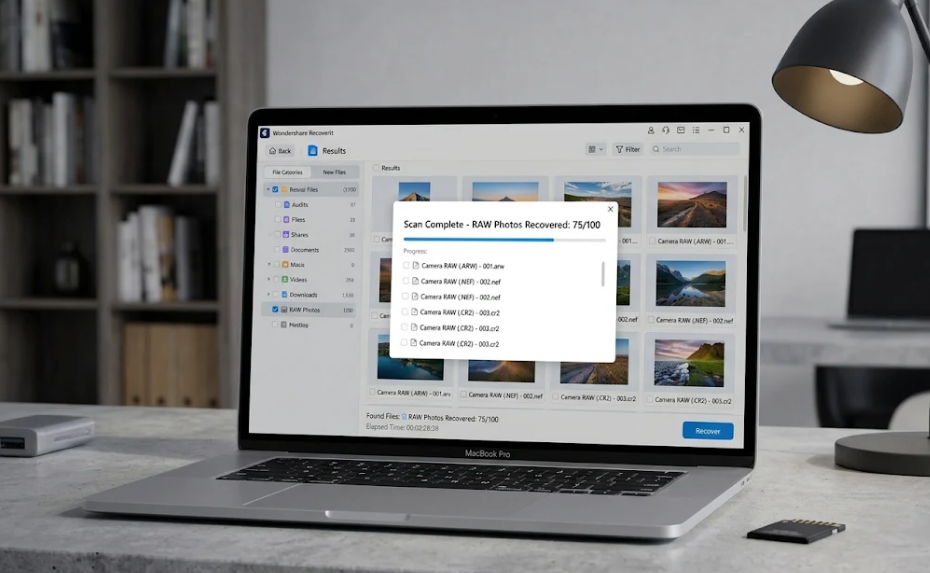
RAW photos are the professional photographer’s negative – the uncompressed, editable master that everything else is derived from. Losing RAW files from a camera memory card is a serious loss, because these are not files you can re-download or re-edit from JPEG. They are the originals.
The good news: RAW photos recover well from camera memory cards, because the data stays on the card until overwritten. The key is using recovery software that understands RAW formats.
Why RAW Recovery Needs Specialized Software
RAW files are different from ordinary photos:
- They use brand-specific formats – CR3 (Canon), NEF (Nikon), ARW (Sony), RAF (Fujifilm), and others.
- They are large – a single RAW file can be tens of megabytes, and the files are stored in fragments.
- They have less redundancy – a JPEG can survive minor damage; a RAW file needs its structure intact.
Generic recovery tools that only understand JPEG will miss RAW files or recover them broken. Camera-aware software recognizes each brand’s RAW signature and rebuilds the files correctly.
Step-by-Step: Recover RAW Photos from a Camera Memory Card
Step 1 – Remove the Card and Connect It
Take the memory card out of the camera immediately. Do not shoot anything else on it. Use a card reader to connect it to your computer – this avoids the camera writing to the card.
Step 2 – Scan with Recoverit
Wondershare Recoverit supports 16-bit RAW preview and recovery for professional photographers, covering CR3, NEF, ARW, RAF, and more.
- Launch Recoverit and click SD Card Recovery.
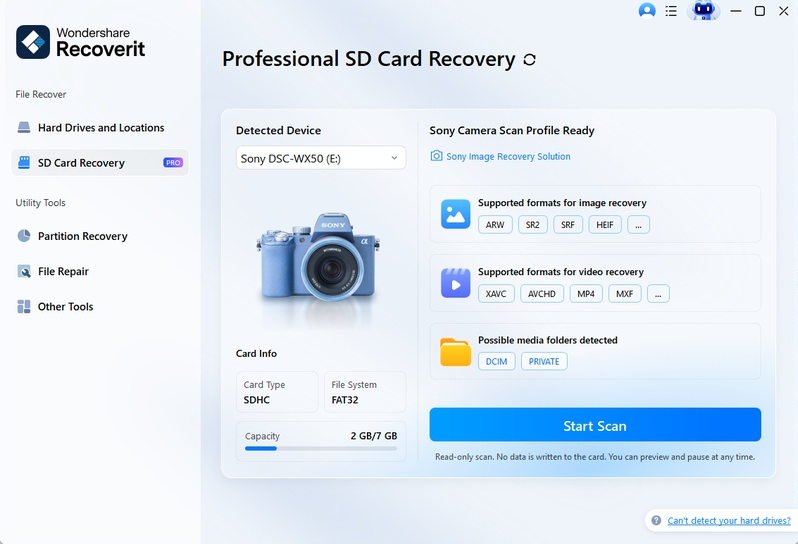
- Select your card and click Scan.
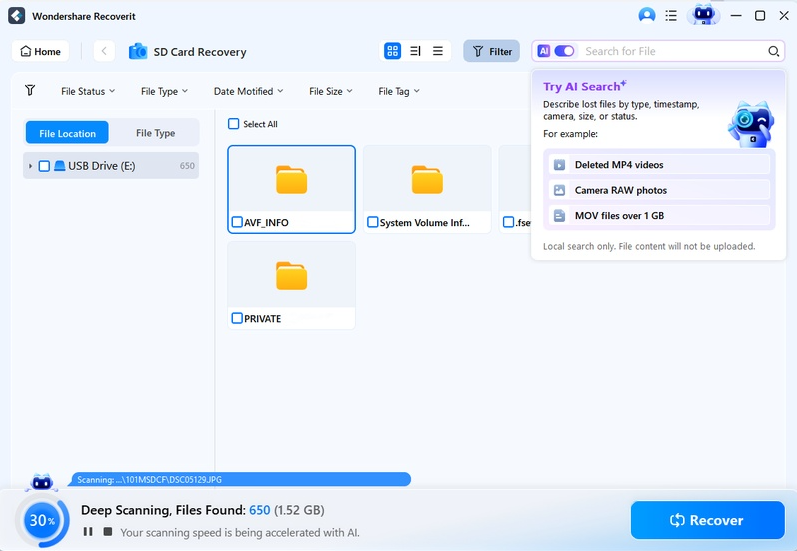
- The scan recognizes RAW files by their format signatures, even when the file system does not list them.
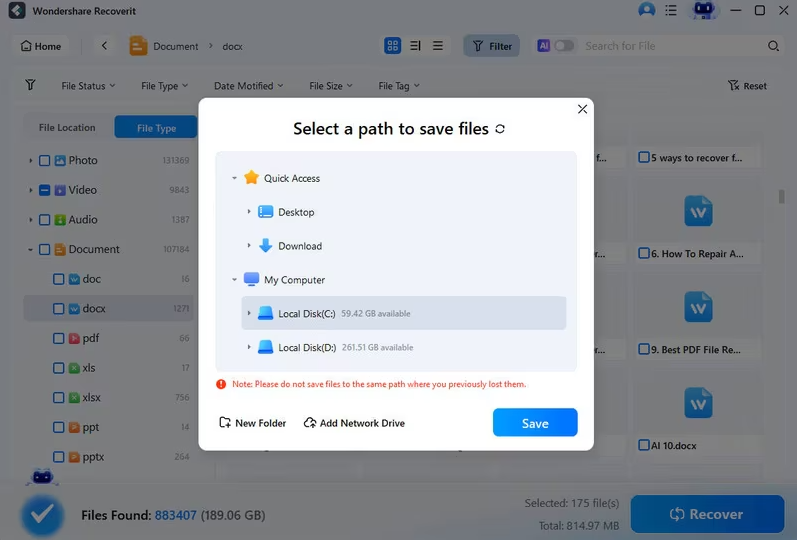
Step 3 – Preview and Recover
Filter by photo type and preview the RAW files. Recoverit shows accurate RAW previews – you can identify the shots before saving. Select your photos and click Recover, saving them to a different drive than the card.
RAW Formats by Brand: What You Are Recovering
RAW is not one format – each manufacturer has its own, and knowing yours helps you verify the tool supports it:
- Canon – CR3 (current bodies), CR2 (older models).
- Nikon – NEF, with variants across camera generations.
- Sony – ARW, used across the Alpha mirrorless line.
- Fujifilm – RAF, with X-Trans sensor data.
- Others – ORF (Olympus), PEF (Pentax), DNG (Adobe’s open RAW format, used by several brands).
A camera-aware recovery tool recognizes these signatures individually. A generic tool that only scans for JPEG markers will either miss RAW files entirely or recover them broken – which is useless when the RAW is the only master you have.
- Why RAW Files Are Harder to Recover Than JPEG
Two properties make RAW recovery trickier than JPEG:
- Size. A single RAW file runs 20-60MB, so the file system splits it into many fragments. Any of those fragments can be overwritten independently.
- Less internal redundancy. JPEGs carry structural redundancy that lets tiny damages be tolerated; a RAW file with a damaged header often will not open at all.
The practical consequence: RAW recovery benefits more from a deep scan and from fragment-aware recovery than JPEG recovery does. If your first scan returns JPEGs but no RAWs, that is the signal to run the deep scan.
Matching the Tool to Your Camera Brand
RAW recovery works best when the tool knows your camera. Recoverit’s AI device recognition identifies Canon, Nikon, Sony, and Fujifilm cards and adapts the scan to their formats. The photo recovery module handles the RAW side of the workflow, and the memory card recovery module covers the card-level scan.
What If the Deep Scan Is Needed?
If your RAW files do not appear in the first scan – they were deleted longer ago, the card was formatted, or the files are fragmented – run the deep scan. RAW files have strong format signatures, so the deep scan rebuilds them even when the file system references are gone.
If a Recovered RAW Won’t Open
A recovered RAW that will not open in your editor is usually structurally damaged, not lost. Two paths:
- Repair it. Recoverit auto-repairs many damaged photos during preview.
- Keep the file. Some editing software can salvage partial RAW data, and a repaired version may still contain most of the image.
Never delete a recovered RAW before trying repair – it is your only copy of the original.
Preventing RAW Photo Loss
- Back up RAW files after every shoot. Cards are temporary; archives are permanent.
- Don’t format the card to “start fresh.” Back up first, then format.
- Use two-card cameras. Mirroring gives you an instant backup.
- Don’t pull the card mid-write. Power off the camera before removing the card.
- Retire cards that error. A card that fails once will likely fail again.
Conclusion
RAW photos are the photographer’s originals, and they recover well from camera memory cards when you use software that understands their formats. Remove the card, stop shooting, and scan with a camera-aware tool. With Wondershare Recoverit, you can recover RAW photos from a camera with 16-bit preview and brand-aware scanning for CR3, NEF, ARW, and RAF. Your originals are still on that card – and they are worth every step of the recovery.
