

Time Machine is Apple’s built-in backup system – the feature that is supposed to make file loss a non-event. But Time Machine itself can fail: the backup is corrupted, the restore window shows nothing, or the drive holding the backup will not mount. When the backup you counted on will not give your files back, you still have options.
Here is how to recover files from Time Machine – including when the built-in restore fails.
Method 1 – Restore with Time Machine Normally
The standard path works when Time Machine is healthy:
- Connect your Time Machine backup drive.
- Open the folder where the file used to live.
- Enter Time Machine (menu bar icon, or System Settings > Time Machine).
- Scroll through the timeline to a date before the file was lost.
- Select the file and click Restore.
Time Machine restores the file to its original location, or offers a new one if the original folder is gone. This works for files, folders, and entire Photos libraries.
Method 2 – Browse the Backup Drive Directly
If the Time Machine timeline does not cooperate, the backup drive itself contains your files – you just need to browse it.
1. Open the backup drive in Finder.
2. Enter the Backups.backupdb folder.
3. Navigate to the Mac’s name, then the date folder you want.
4. Copy the files directly out of the backup.
This method bypasses the Time Machine interface entirely – the backup is just a folder structure, and Finder can read it.
Method 3 – Recover Time Machine Files When Restore Fails
If the backup is corrupted, the drive will not mount, or the timeline is empty, the files are likely still on the backup drive – but the built-in tools cannot read them. This is where recovery software comes in.
Wondershare Recoverit can import and scan Time Machine backups when the normal restore fails. It is part of the Wondershare data recovery suite, which brings the same backup-recovery approach to Windows and other platforms.
Step 1 – Connect the Backup Drive
Connect the Time Machine backup drive to your Mac. If it will not mount, note that – Recoverit can often still detect it at the hardware level.
Step 2 – Scan the Backup Drive
Launch Recoverit, select the backup drive, and run the scan. The tool reads the drive’s raw data, finding the files inside the backup even when the backup structure is damaged.
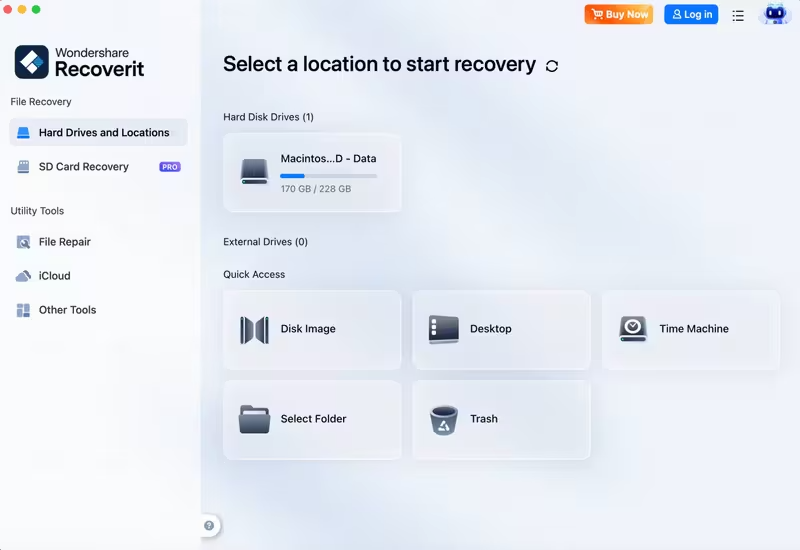
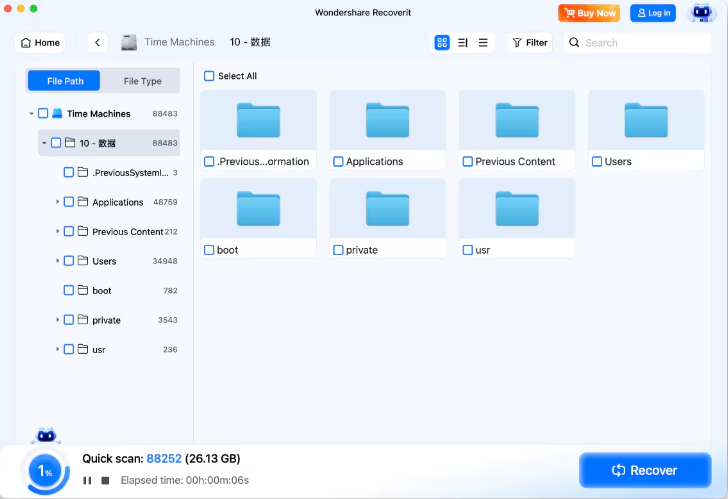
Step 3 – Import and Recover
Recoverit can import Time Machine backups directly – the Time Machine recovery workflow opens the backup contents and lets you recover individual files to a safe location.
Why Time Machine Backups Recover Well
Time Machine backups are excellent recovery candidates:
- They are large and infrequently rewritten. Backup drives accumulate data without constant overwriting.
- They use a dated folder structure. Even without the Time Machine interface, the file structure tells you what is where.
- They hold complete file versions. The backup preserves files as they were on specific dates.
The main challenge is access, not data – which is why scanning the drive directly works so often.
Preventing Time Machine Problems
- They are large and infrequently rewritten. Backup drives accumulate data without constant overwriting.
- They use a dated folder structure. Even without the Time Machine interface, the file structure tells you what is where.
- They hold complete file versions. The backup preserves files as they were on specific dates.
Conclusion
Time Machine is a great backup system – until the restore fails. When it does, remember the backup drive itself still holds your files, and recovery software can read them directly. With Wondershare Recoverit, you can recover files from Time Machine by scanning the backup drive and importing its contents, even when the built-in restore fails. The backup you made is still there – and there is a way to get your files back from it.
